Reduce HDMI Input Lag – A Practical Guide for Gamers
When you fire up a new game on a high‑refresh‑rate monitor, the last thing you want is a half‑second of blank stare between button press and on‑screen action. That delay is input lag, and the HDMI link between your console or PC and your monitor often adds latency.
This guide shows why HDMI can add delay, walks you through the settings and hardware tweaks you can make, and points you to products that keep your reflexes sharp. By the end you’ll know how to audit every link—cable, port, monitor, and source—and have a clear plan to shave milliseconds (and sometimes whole frames) off your gameplay.
Quick picks
- Upgrade to an Ultra‑High‑Speed HDMI cable – 48 Gbps, certified for HDMI 2.1, ensures the full bandwidth your monitor and console need.
- Enable Game Mode or Low‑Latency Mode on your monitor – most premium gaming panels have a dedicated setting that bypasses image‑processing pipelines.
- Switch to DisplayPort if possible – native DP often has lower latency than HDMI 2.0/2.1, especially on PCs.
- Tweak your source device’s output settings – matching the monitor’s native refresh rate, disabling HDR or colour‑space conversion can cut lag.
- Update firmware and drivers – a one‑click software update often optimises the HDMI handshake.
What to look for
1. HDMI version & bandwidth
Modern gaming monitors frequently support HDMI 2.1, pushing 48 Gbps – enough for 4K 144 Hz or 8K 60 Hz. Earlier versions (2.0, 1.4) cap at 18 Gbps and may force down‑scaling, adding processing time. Verify that cables, ports, and devices share the same HDMI version.
2. Cable quality and certification
A cheap “high‑speed” cable may meet 1080p 60 Hz but introduce jitter at higher rates. Look for Ultra‑High‑Speed HDMI cables with the official certification logo; they guarantee stable transmission up to the full HDMI 2.1 spec, reducing error‑correcting retransmissions that increase latency.
3. Monitor’s input‑lag rating
Manufacturers sometimes publish input‑lag numbers measured with a light‑gate. For competitive titles aim for ≤ 4 ms at your target refresh rate. If the spec isn’t listed, check professional reviews. Ensure the monitor offers a Game Mode or Low‑Latency Mode, which disables post‑processing that adds latency.
4. Overdrive / response‑time settings
Overdrive speeds up pixel transitions but an aggressive setting can cause overshoot, which some panels treat as extra frames, subtly raising overall latency. A “Medium” or “Standard” setting usually balances crisp motion with minimal delay.
5. Source device output configuration
Your PC’s graphics driver or console’s video settings let you pick resolution, refresh rate, colour format (RGB vs YCbCr), and HDR. Match the monitor’s native resolution and refresh rate to avoid internal scaling. Disabling HDR when it isn’t needed can shave 1‑2 ms, as the HDR pipeline adds work.
6. Firmware and driver updates
Monitors and consoles/GPUs receive firmware updates that streamline the HDMI handshake, fix timing bugs, and improve latency. Set your monitor to auto‑update (or check the manufacturer’s site regularly) and keep GPU drivers current.
7. External signal processors (optional)
If you run multiple displays or need a splitter, choose an active HDMI low‑latency switch or splitter designed for gaming. Passive splitters simply duplicate the signal but can introduce timing errors when downstream devices request different handshakes. Active processors maintain the original frame timing and often advertise “≤ 1 ms added latency”.
Our picks
1. Ultra‑High‑Speed HDMI cables (48 Gbps)
If you’re playing on a 4K 144 Hz monitor or a 1440p 240 Hz panel, the cable is the first bottleneck you can eliminate. Look for cables that carry the official Ultra‑High‑Speed HDMI certification and clearly state support for HDMI 2.1, 48 Gbps bandwidth, and features like eARC and Variable Refresh Rate (VRR).
These cables have a thicker, double‑shielded build that keeps electromagnetic interference (EMI) out—important when the cable runs near power supplies or other high‑frequency devices. They cost more than legacy “high‑speed” cables, but the latency benefit is measurable at extreme refresh rates.
Shop this type: Check price on Amazon →
2. Gaming monitors with native Game Mode and low input lag
A monitor that advertises ≤ 4 ms input lag at its native refresh rate is a solid foundation for a lag‑free experience. Look for panels that list a dedicated Game Mode, low‑latency firmware, and the ability to lock the refresh rate (no automatic “frame‑rate smoothing” that re‑times frames).
Most premium gaming monitors also let you toggle overdrive and colour‑space conversion independently, so you can fine‑tune the balance between motion clarity and latency. Some 4K 144 Hz models achieve the lowest lag when run at 1080p 144 Hz or 1440p 120 Hz because the internal scaler adds processing time at the highest resolution.
Shop this type: Check price on Amazon →
3. Active HDMI low‑latency splitters or switches
For streamers, tournament setups, or anyone who needs to feed the same HDMI signal to multiple displays (e.g., a TV for spectators and a monitor for the player), a low‑latency HDMI splitter is essential. Unlike passive splitters that simply clone the signal, active units re‑drive the HDMI waveform and preserve the original timing information.
Look for splitters that specifically claim “≤ 1 ms added latency” and support the same HDMI version as your source (HDMI 2.1 for 4K 144 Hz). Some models include HDMI‑CEC pass‑through and HDMI‑ARC support, handy for audio routing without extra cables. The trade‑off is size and cost—these devices are bulkier and pricier than basic splitters, but they keep competitive‑level latency intact.
Shop this type: Check price on Amazon →
4. Graphics cards or consoles with robust HDMI output
While you can’t “buy” a better HDMI port in isolation, choosing a GPU or console generation that natively supports HDMI 2.1 eliminates many compatibility headaches. Modern GPUs from NVIDIA and AMD, and the latest PlayStation and Xbox consoles, ship with HDMI 2.1 ports capable of 48 Gbps output.
When selecting a new PC graphics card, prioritize models that include HDMI 2.1 with DSC (Display Stream Compression) support—this lets you run 4K at 144 Hz without sacrificing colour depth. If you’re shopping for a console, the most recent hardware already handles these specs, but double‑check that your TV or monitor’s HDMI port is also HDMI 2.1; otherwise you’ll be forced into a lower‑bandwidth handshake.
Shop this type: Check price on Amazon →
How to choose
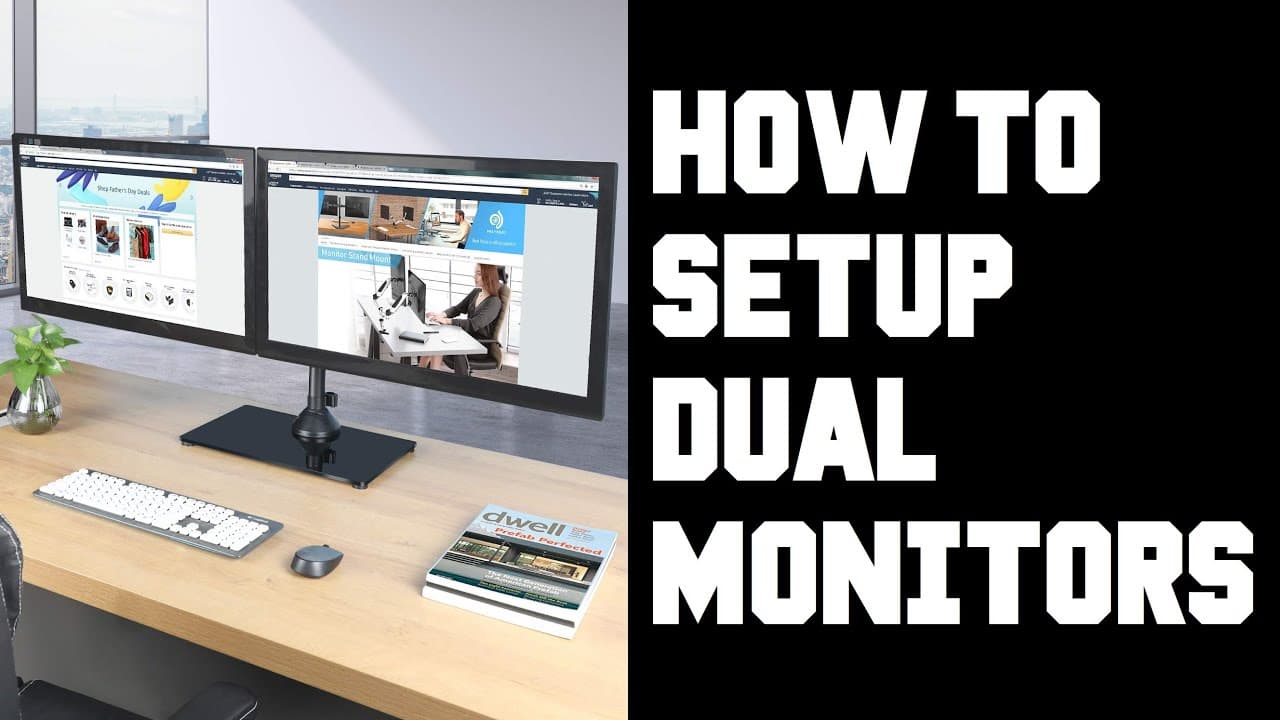
- Audit your current bottlenecks. If you already use a certified Ultra‑High‑Speed cable and your monitor’s input‑lag spec is under 4 ms, focus on source settings—output at the monitor’s native resolution and disable unnecessary processing (HDR, colour conversion).
- Replace outdated cables. If the cable is older or you see “no signal” messages when the frame rate spikes, swap it for a certified 48 Gbps cable.
- Add an active splitter only when needed. For multi‑display rigs, a low‑latency splitter prevents the duplication process from becoming the new bottleneck.
- Prioritize budget. Cable and monitor upgrades deliver the biggest latency reduction per dollar. Graphics‑card or console upgrades are more expensive but may be required if your hardware can’t output HDMI 2.1 at the desired refresh.
- Make firmware updates a habit. Set a monthly reminder to check monitor, GPU, and console sites. A simple update can shave 1‑2 ms off total input lag without any additional hardware.
FAQ
What is the typical input lag for a good gaming monitor? A well‑optimized gaming monitor usually reports ≤ 4 ms input lag at its native refresh rate when Game Mode is enabled. Ultra‑low‑lag models can dip below 1 ms but are niche.
Does disabling HDR really reduce lag? Yes. The HDR pipeline adds colour‑space conversion and tone‑mapping, which can add 1‑2 ms of latency. Turn it off for titles where HDR isn’t essential.
Are all high‑speed HDMI cables the same? No. “High‑speed” ranges from 1080p 60 Hz support to full HDMI 2.1 performance. Look for the Ultra‑High‑Speed HDMI certification and a clear 48 Gbps rating.
Can I use a DisplayPort‑to‑HDMI adapter without adding lag? A passive adapter that merely rewires pins adds negligible latency. Active converters that up‑sample or change colour spaces can introduce 1‑3 ms delay. Choose a high‑quality passive adapter if conversion is necessary.
How do I measure input lag on my own setup? Use a high‑speed camera (or a smartphone recording at 240 fps) to capture the moment you press a controller button and the resulting change on screen. Count the frames between the two events and divide by the frame rate to get lag in milliseconds. Dedicated tools like the NVIDIA Pendulum Demo also display on‑screen lag figures.
Is a low‑latency HDMI splitter necessary for a single‑monitor setup? No. A splitter is only needed when you duplicate the signal for streaming or spectator displays. In a single‑monitor configuration, a direct connection is optimal.
Does updating my monitor’s firmware affect input lag? Often, yes. Firmware updates can refine HDMI handshake timing, improve Game Mode implementation, and fix bugs that unintentionally increase latency.
Bottom line
Reducing HDMI input lag is systematic: start with a certified Ultra‑High‑Speed cable, enable the monitor’s Game Mode, match the source’s output to the panel’s native settings, and keep firmware and drivers up to date. For multi‑display rigs, an active low‑latency splitter preserves timing without sacrifice. Address each link in the HDMI chain and you’ll shave precious milliseconds off your reaction time, delivering a smoother, more responsive gaming experience.
Happy hunting!