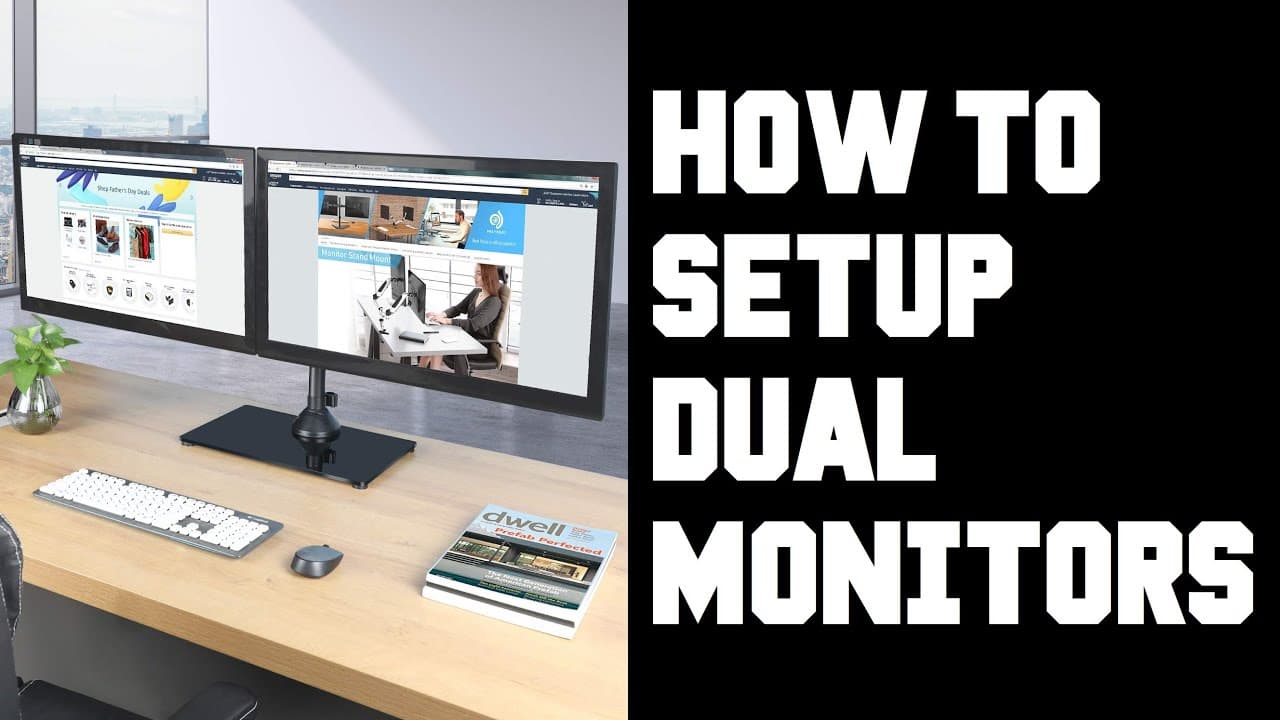
How to Set Up Dual Monitors for Competitive Play – A Step‑by‑Step Guide
If you’re stuck in bronze or silver because a crucial piece of information—chat, the mini‑map, or a livestream chat—is hidden behind a single screen, a dual‑monitor rig can be the missing link. The right combination of refresh rates, layout, and ergonomics eliminates blind spots, reduces neck strain, and lets you react faster during clutch moments. This guide walks you through the hardware you need, the settings to tweak, and the ergonomic tricks that keep you comfortable for marathon sessions. By the end you’ll know exactly which monitors to buy, how to wire them, and how to sync refresh rates so the pair feels like a single, seamless battlefield.
Quick picks
- Side‑by‑side high‑refresh twins – Two identical 144 Hz (or higher) panels arranged horizontally for a seamless 2× view.
- Primary‑wide + secondary‑vertical – A fast‑refresh main monitor paired with a portrait‑oriented screen for chat, maps, or stat trackers.
- Curved ultrawide as the main, compact secondary – One 34‑inch ultrawide for immersion, plus a smaller 24‑inch monitor for utilities.
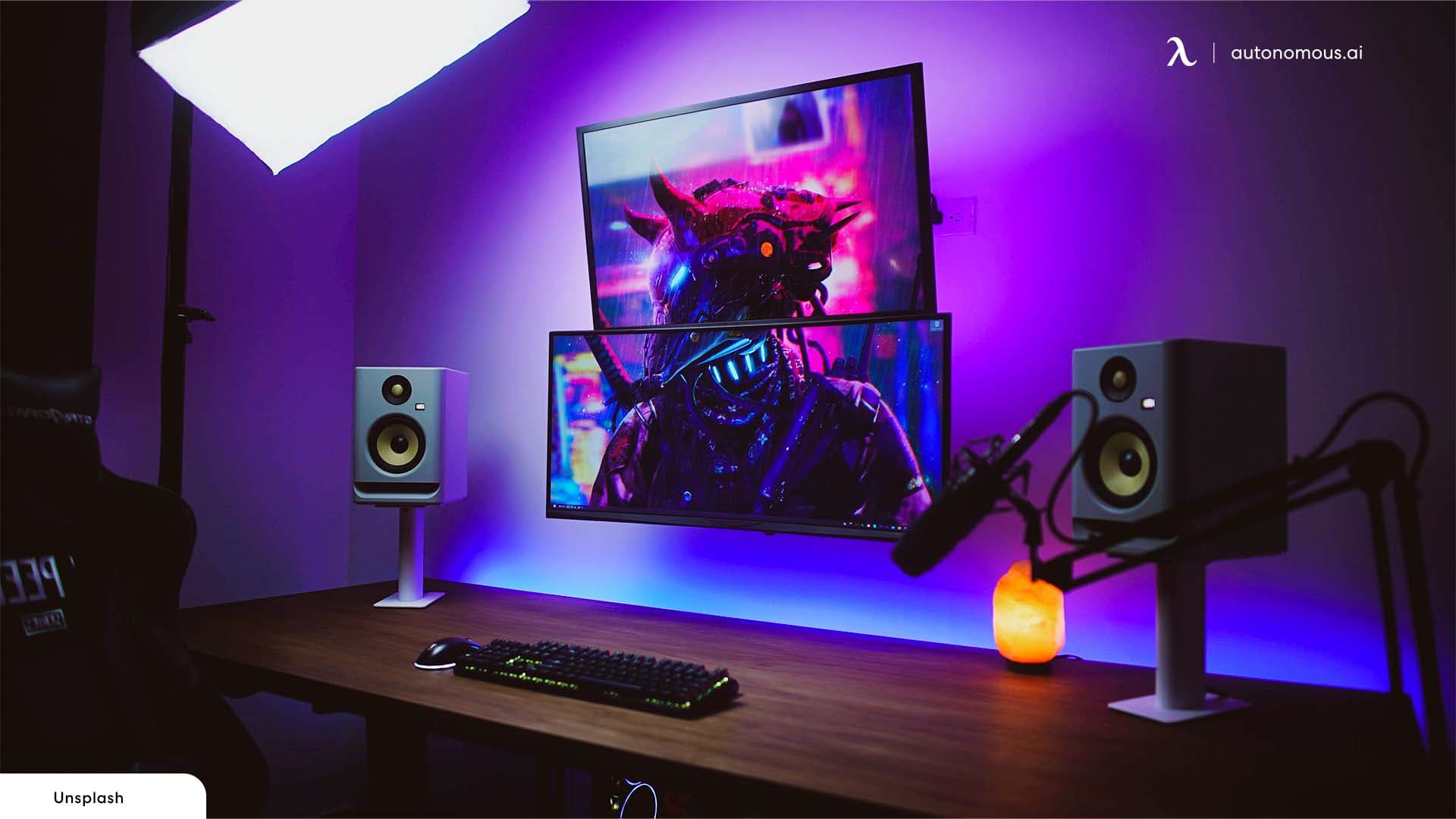
- Desktop‑only dual‑pixel‑perfect stack – Two identical monitors stacked vertically, ideal for RTS or flight sims.
Choose the layout that matches your desk space, desired field of view, and the type of extra information you need on screen.
What to look for
1. Refresh rate & response time
Competitive players gravitate toward 144 Hz or higher panels because higher frame counts cut perceived motion blur and input lag. Aim for a 1 ms (GtG) or sub‑5 ms response time on the primary screen. The secondary monitor can tolerate a slightly slower response (e.g., 5 ms) if it only shows static data.
2. Panel type and color accuracy
TN panels are fastest but suffer from narrow viewing angles. IPS panels deliver wide angles and vivid colors, which helps when you glance at a second screen at an offset. Many pros use a fast IPS for the main game and a budget‑friendly IPS or VA for the auxiliary display.
3. Adaptive sync technology
FreeSync (AMD) and G‑Sync (NVIDIA) eliminate screen tearing. Ideally both monitors support the same standard; if not, enable it on the primary display only.
4. Connectivity & bandwidth
Two high‑refresh monitors usually require a GPU with at least two DisplayPort 1.4 or HDMI 2.1 outputs. Verify that the ports on each monitor match your cables and that the bandwidth can handle the chosen resolution and refresh rate simultaneously (e.g., 27‑inch 2560×1440 @ 144 Hz on each screen).
5. Ergonomic adjustability
Height, tilt, swivel, and pivot are essential for aligning screens without neck strain. VESA‑compatible mounts give you independent control for each panel.
6. Size & resolution balance
A common sweet spot is a 27‑inch 2560×1440 panel for the main monitor paired with a 24‑inch 1920×1080 or another 27‑inch 2560×1440 as the secondary. Keep pixel density within a 10‑15 % range to avoid a jarring visual jump.
7. HDR and color gamut (optional)
HDR can boost contrast for streaming or media consumption, but it may add input lag. Enable it only when you’re not in a competitive session.
Our picks
1. Side‑by‑side high‑refresh twins
Two identical 27‑inch 144 Hz IPS panels provide a uniform cursor speed across the seam and eliminate resolution mismatches. This layout shines for FPS titles that support extra FOV, while the second screen hosts voice chat, a Discord overlay, or a stat tracker. The trade‑off is desk width—plan for at least 55‑60 inches.
Shop this type: Check price on Amazon →
2. Primary‑wide + secondary‑vertical
A 27‑inch (or 32‑inch) 144 Hz IPS panel sits horizontally, while a 24‑inch 1080p (or 27‑inch 1440p) panel is mounted in portrait mode. The vertical screen excels at displaying chat logs, kill feeds, or in‑game maps without crowding the central view. Color consistency may differ, but portrait monitors often have slower response times—acceptable for static overlays.
Shop this type: Check price on Amazon →
3. Curved ultrawide as the main, compact secondary
A 34‑inch curved ultrawide (3440×1440, 144 Hz) creates an immersive field of view that can replace two separate screens for many shooters. Pair it with a 24‑inch 1080p panel for Discord, streams, or system monitoring. The curve keeps focal distance consistent across the screen, reducing eye strain. Keep a sturdy desk or wall mount ready; ultrawides are heavier.
Shop this type: Check price on Amazon →
How to choose
- Game genre – Fast‑twitch shooters benefit most from two identical high‑refresh panels that give a seamless peripheral view. Strategy or MOBA players often prefer a wide primary screen plus a vertical secondary for chat, calendars, or live stat trackers.
- Desk real‑estate – Measure the usable width. A side‑by‑side layout needs ~55 inches, while a vertical‑secondary or stacked setup fits narrower stations.
- GPU outputs – List the ports your graphics card offers. If you have one DisplayPort 1.4 and one HDMI 2.1, pick monitors that match those ports or invest in a reliable active adapter. Ensure combined bandwidth stays within the GPU’s limits; most mid‑range RTX 3060 or Radeon 6600 XT cards handle 2× 1440p@144 Hz without issue.
- Ergonomics – Whenever possible, test adjustments in‑store. The ideal line of sight runs straight from your eyes to the center of each screen, minimizing neck rotation. A dual‑arm VESA mount often provides the cleanest solution.
- Future‑proofing – Consider whether you’ll add HDR, higher resolutions, or a third monitor later. Buying VESA‑compatible models now saves trouble down the road.
When your game type, physical footprint, and hardware compatibility align, you’ll land on a configuration that feels natural and provides the competitive edge you’re after.
FAQ
How many HDMI/DisplayPort cables do I need?
One cable per monitor. Most gamers use DisplayPort for the primary high‑refresh screen because of its bandwidth, and HDMI for the secondary display unless both require DisplayPort.
Will my mouse cursor move smoothly across two monitors of different resolutions?
Windows and most drivers interpolate cursor speed, but a large DPI‑to‑pixel mismatch can cause a slight speed change at the seam. Matching resolutions or using monitors with similar pixel density eliminates the issue.
Do I need a special GPU to run two 144 Hz monitors?
A mid‑range RTX 3060 or Radeon 6600 XT and newer can easily drive two 144 Hz 1440p panels. Older GPUs may need you to lower one monitor’s refresh rate.
Is V‑Sync still relevant with dual monitors?
When adaptive sync (FreeSync/G‑Sync) is active, V‑Sync is generally unnecessary and can add input lag. Turn it off unless you experience tearing on a secondary monitor lacking adaptive sync.
Can I use a monitor arm for a dual‑monitor rig?
Absolutely. A dual‑arm VESA mount gives independent height and tilt control, aligning the tops of the screens perfectly while freeing desk space. Verify the arm’s weight rating matches your monitors.
Bottom line
Setting up dual monitors for competitive play is an investment in performance and comfort. Choose a layout that matches your game genre, desk real‑estate, and GPU capabilities. Prioritize high refresh rates, low response times, and adaptive sync on the primary screen, while using a versatile secondary panel for communication, stats, or streaming tools. With proper ergonomic adjustments and tidy cable management, your twin‑screen rig will act as a single, expanded battlefield—giving you the visual edge needed to climb the ladder. Happy gaming!