What to Look for in a High‑Refresh Monitor: A Practical Buying Guide
Stuttering at 60 Hz while trying to dominate a fast‑paced shooter? The monitor is the missing link between your GPU’s frame output and the images you see. A true high‑refresh panel can turn a choppy 60 fps experience into buttery‑smooth 144 Hz (or higher), cutting motion blur and giving you a decisive edge. Not every “high‑refresh” display delivers the same speed, color fidelity, or comfort. This guide breaks down the specs, features, and ergonomic factors you must evaluate before clicking “add to cart,” whether you’re building a budget‑friendly esports rig or a premium visual workstation.
Quick picks
- Ultra‑fast IPS for color‑critical competitive play – High refresh plus accurate colors for HDR titles.
- VA‑based 240 Hz monsters for deep‑black immersion – Ideal for dark‑room gamers who value contrast.
- Compact 27‑inch monitors with built‑in adaptive sync – Fits small desks or multi‑monitor setups.
- Ergonomic work‑horse with swivel, height‑adjust, and USB‑hub – Comfort for professionals who game after long workdays.
What to look for
1. Refresh Rate & Motion Clarity
Refresh rate (Hz) tells how many times per second the panel redraws the image. Modern consoles and PCs regularly push 120 fps or higher, so a monitor that matches or exceeds that (144 Hz, 165 Hz, 240 Hz, 360 Hz) keeps motion smooth and eliminates stutter.
Guidance
- Match to your hardware. A GPU that caps at 144 fps pairs well with a 144 Hz panel; an RTX 4090 or Xbox Series X can exploit 240 Hz or more.
- Overclocked modes. Many panels list a native 144 Hz but can be pushed to 165 Hz via the OSD. Verify the manufacturer’s official support.
- Motion‑blur reduction (e.g., ULMB, Blur Reduction). Strobing improves sharpness but often disables HDR—consider the trade‑off.
2. Response Time & Input Lag
Response time (ms) measures how quickly a pixel changes color, usually quoted as GtG (gray‑to‑gray). Lower numbers reduce ghosting. Competitive gamers aim for 1 ms–2 ms GtG.
Input lag is the delay between the GPU sending a frame and the monitor displaying it. Even a 240 Hz panel can feel sluggish with high lag.
Guidance
- Prioritize verified low input lag (< 5 ms). Look for lab results from RTINGS, TechSpot, or manufacturer claims.
- Don’t confuse response time with input lag. A monitor may boast 1 ms response yet have 15 ms lag.
- Enable “Game” or “Fast” mode in the OSD to turn off latency‑adding post‑processing.
3. Panel Technology & Color Performance
- IPS – Best color accuracy, wide viewing angles, solid HDR. Modern IPS reaches 144 Hz, 165 Hz, even 240 Hz.
- VA – Deep blacks, high contrast (3000:1+). Recent 240 Hz VA panels close the speed gap.
- TN – Sub‑1 ms response but narrow angles and washed‑out colors; only for tight‑view, ultra‑budget builds.
Guidance
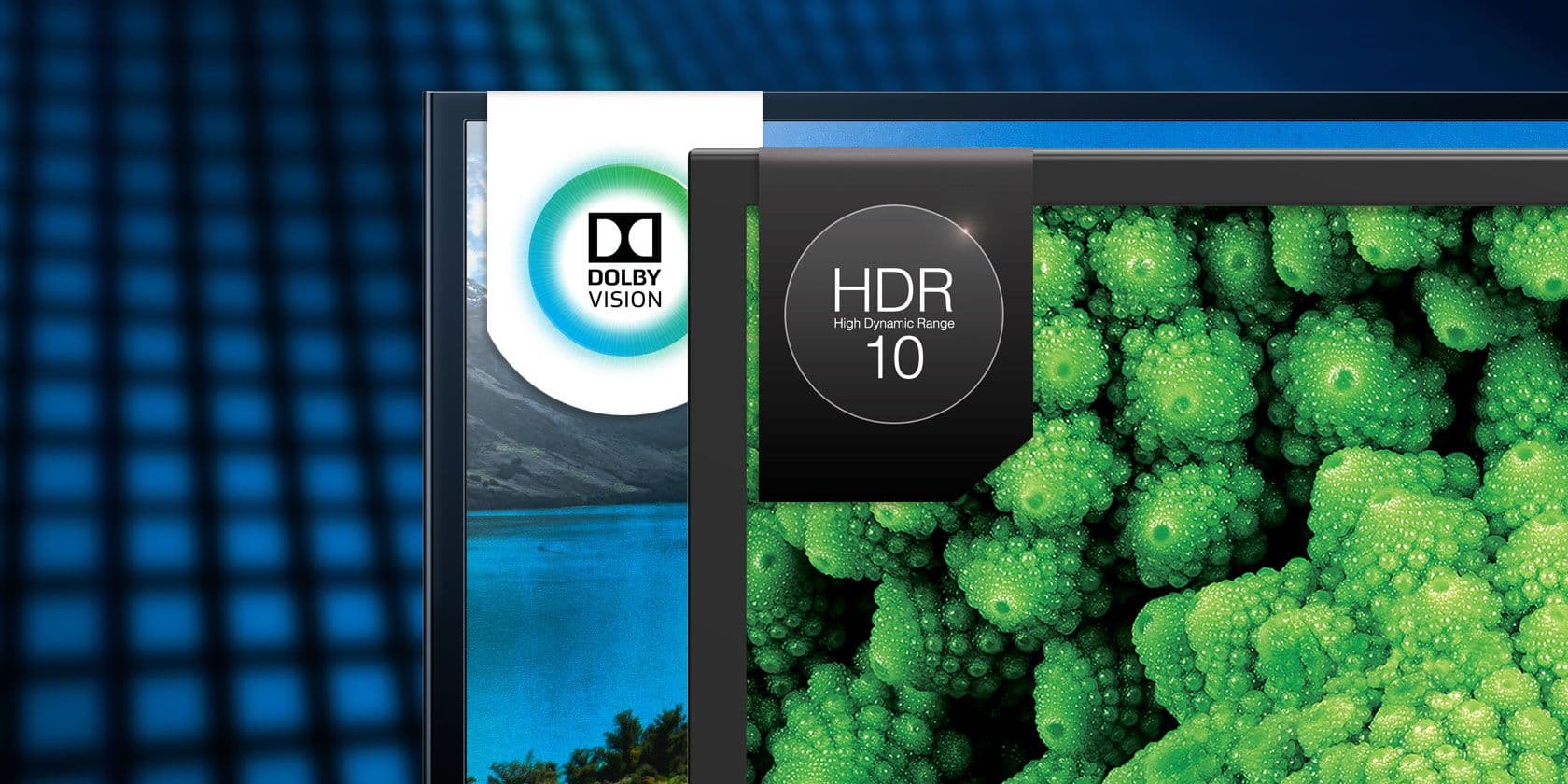
- Target ≥ 90 % DCI‑P3 for vivid HDR, especially on IPS.
- Check contrast ratio (VA: 3000:1+, IPS: 1000–1500:1) for dark‑room titles.
- Consider factory‑calibrated panels for out‑of‑the‑box accuracy.
4. Adaptive Sync & Variable Refresh
VRR technologies (NVIDIA G‑SYNC, AMD FreeSync, VESA Adaptive‑Sync) match the monitor’s refresh to the GPU’s output, eliminating tearing.
Guidance
- Choose the VRR standard that matches your GPU. Most modern cards support both G‑Sync Compatible and native FreeSync.
- Look for a wide VRR range (e.g., 48 Hz‑144 Hz) so low frame‑rate dips stay smooth.
- Some monitors combine Low‑Flicker/ELMB with VRR; HDR may need disabling.
5. Connectivity & Ergonomics
A high‑refresh monitor is only as good as the way you can set it up.
Guidance
- DisplayPort 1.4 (or higher) is required for 144 Hz+ at 1440p; HDMI 2.1 for 4K‑120 Hz.
- USB‑C with power delivery offers a single‑cable laptop solution.
- Fully articulated stand (height, tilt, swivel, pivot) reduces neck strain.
- Built‑in USB hubs and headphone jacks add convenience on cramped desks.
Our picks
High‑Refresh IPS for Color‑Critical Competitive Play
An IPS panel ≥ 144 Hz, 90 %+ DCI‑P3, 1–2 ms GtG, and < 5 ms input lag delivers vibrant colors without sacrificing speed. The wide viewing angles let teammates gather around without image degradation.
Who it suits
- Streamers and content creators needing accurate colors.
- Competitive shooters that value both speed and visual fidelity.
- Users who also enjoy HDR movie nights.
Trade‑offs
- Higher price than comparable VA models.
- Blacks aren’t as deep as on VA panels.
Shop this type: Check price on Amazon →
Fast VA Panels for Deep‑Black Immersion
A 240 Hz VA monitor provides the contrast (3000:1+) needed for dark‑themed games while still delivering esports‑grade speed. Look for 2 ms GtG and FreeSync Premium (or G‑Sync Compatible).
Who it suits
- Players who prioritize deep shadows in atmospheric titles.
- Mid‑range budgets that still demand high refresh.
- Users sitting directly in front of the screen.
Trade‑offs
- Narrower viewing angles can cause color shift.
- Slightly higher input lag than top‑tier IPS models.
Shop this type: Check price on Amazon →
Compact 27‑Inch G‑Sync/FreeSync Ready Monitors for Small Setups
A 27‑inch, 144 Hz (or 165 Hz) panel balances immersion and desk space. Ensure it supports both G‑Sync Compatible and FreeSync, includes DisplayPort 1.4, and offers a fully adjustable stand. Integrated cable management and a USB‑C port keep a tight workspace tidy.
Who it suits
- Apartment dwellers or students with limited desk depth.
- Multi‑monitor enthusiasts needing a uniform refresh rate.
- Casual gamers wanting high‑refresh performance without a massive footprint.
Trade‑offs
- 27‑inch models often cap at 144 Hz, so ultra‑high‑refresh purists may look larger.
- Smaller panel can feel less immersive in open‑world RPGs.
Shop this type: Check price on Amazon →
How to choose
- Match the refresh ceiling to your hardware. If your GPU delivers 120–140 fps, a 144 Hz panel is sufficient. For rigs that sustain 240 fps, step up—recognizing that the visual gain beyond 144 Hz is incremental for many users.
- Pick the panel type that fits your visual priorities. IPS for color accuracy, VA for contrast, TN only for the cheapest ultra‑fast option.
- Verify VRR compatibility. NVIDIA owners benefit from G‑Sync Compatible monitors; AMD users should target FreeSync Premium.
- Prioritize input lag. Look for independent tests showing < 5 ms lag for the most responsive feel.
- Assess ergonomics and connectivity. Adjustable stands, VESA‑mount capability, and the right mix of DisplayPort/HDMI/USB‑C keep your setup comfortable and future‑proof.
By weighing these criteria against your budget and desk constraints, you’ll end up with a monitor that feels like a natural extension of your gaming rig rather than a compromise.
FAQ
What is the practical difference between 144 Hz and 240 Hz?
A 240 Hz panel can display twice as many frames per second as a 144 Hz one, delivering smoother motion and marginally lower input latency. The benefit is most noticeable in fast shooters where every millisecond counts; casual gamers may not perceive a huge jump beyond 144 Hz.
Does a lower response time guarantee less ghosting?
Generally, a faster response time (1‑2 ms GtG) reduces ghosting, but the actual result also depends on overdrive settings and panel chemistry. Some 1 ms panels overshoot and create inverse ghosting, so real‑world reviews are essential.
Can I use a high‑refresh monitor for work or content creation?
Absolutely. Higher refresh rates make scrolling through documents, spreadsheets, or timelines feel smoother, and an IPS panel offers accurate colors for photo and video editing. Just confirm the monitor meets the color‑gamut and calibration standards you need.
Do I need a special cable to achieve the advertised refresh rate?
Yes. For 144 Hz+ at 1440p, use a DisplayPort 1.4 cable; for 4K‑120 Hz, HDMI 2.1 is required. Older HDMI 1.4 cables will cap the refresh at 60 Hz, negating the monitor’s high‑refresh capability.
Is “overclocked” refresh rate reliable for gaming?
Manufacturers usually certify an overclocked mode (e.g., 165 Hz on a 144 Hz panel). It’s generally stable for everyday use, but extreme overclocks can introduce flicker or higher power draw. Check community feedback before pushing beyond the rated maximum.
Should I prioritize HDR or high refresh for console gaming?
If you mainly play next‑gen consoles (PS5, Xbox Series X) that support 4K‑120 Hz, choose a monitor with HDMI 2.1, solid HDR peak brightness, and at least 120 Hz. Balancing both is ideal, but high refresh often impacts gameplay feel more than HDR in fast‑paced titles.
How important is low input lag for single‑player games?
Even single‑player titles benefit from low input lag, especially platformers, racers, or any game demanding precise timing. A consistent sub‑5 ms lag provides a tighter, more responsive experience across all genres.
Bottom line
Choosing a high‑refresh monitor isn’t just about grabbing the highest hertz number; it’s about aligning refresh, response, panel technology, VRR support, and ergonomics with your hardware, play style, and workspace. IPS panels give color fidelity, VA panels deliver deep contrast, and compact 27‑inch models fit tight desks while still providing smooth motion. Evaluate these criteria against your budget and preferences, and you’ll secure a display that not only keeps up with fast frames but also enhances comfort and visual enjoyment. Happy hunting!